Main Page
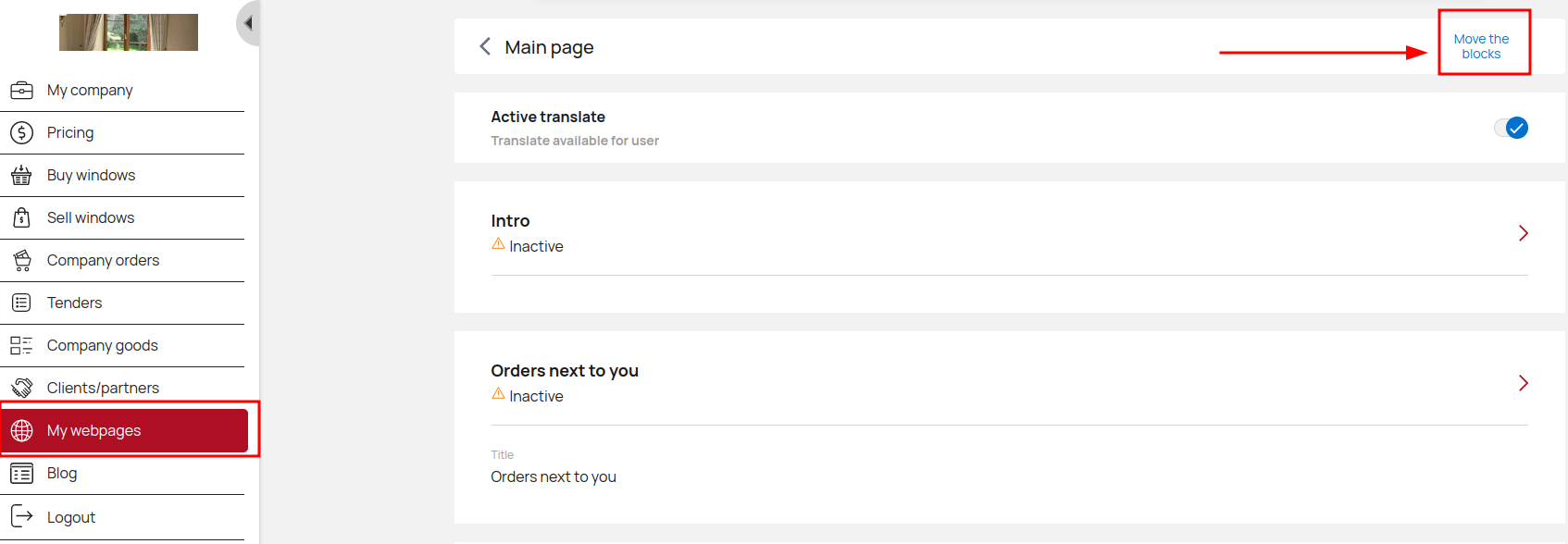
Main page contains many different blocks from which you can create content for your site. These blocks can be placed in any order by clicking on the button "Change the order of blocks" in the upper right corner of the screen.
Intro
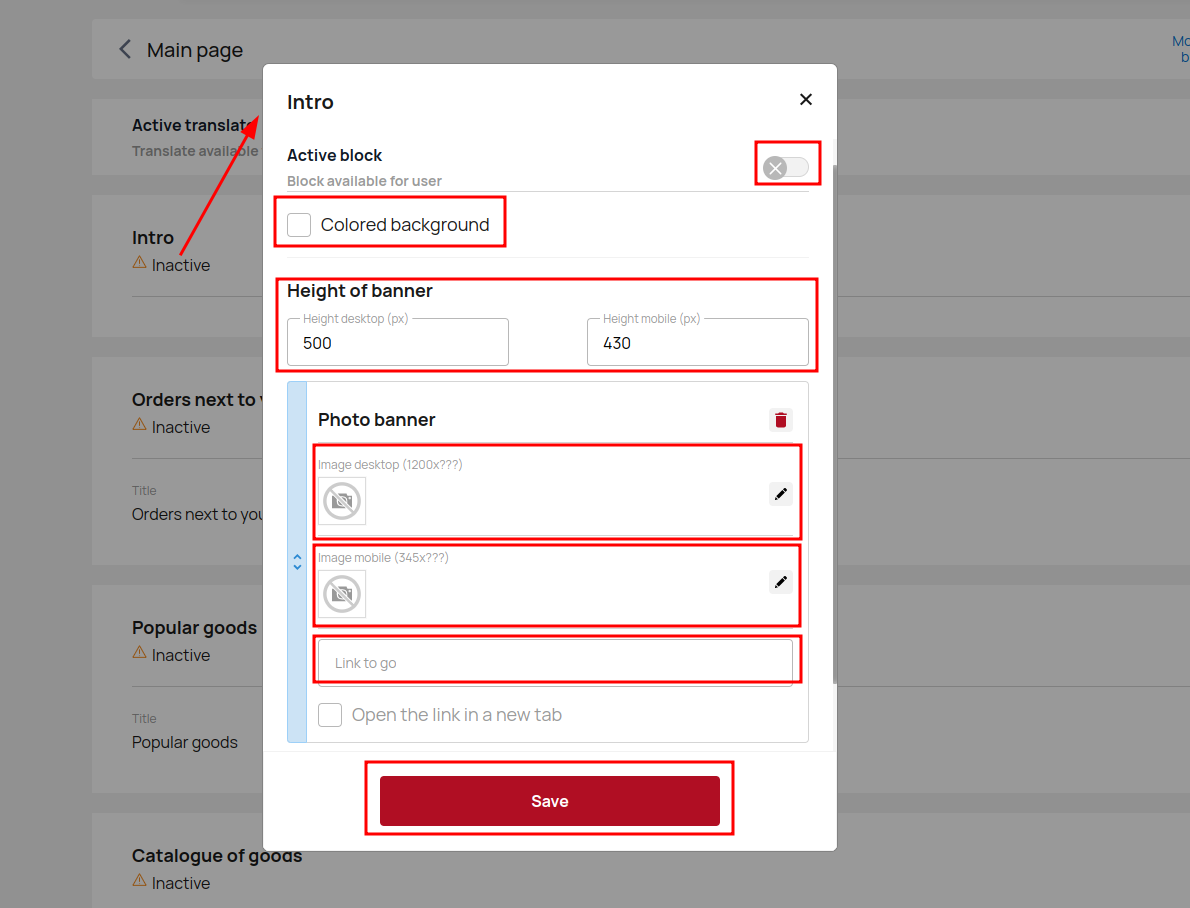
In this block, you can add images for both the desktop and mobile versions, set the address for clicking on the banner (site page or link to a third-party resource), adjust their height (in px), add a colored background for them. It is also possible to see the number of views for each of them. For each language version of the site, you can download different banner images, set different links. You can add any number of banners.
Click Activate block to display it on the main page.
Orders next to you
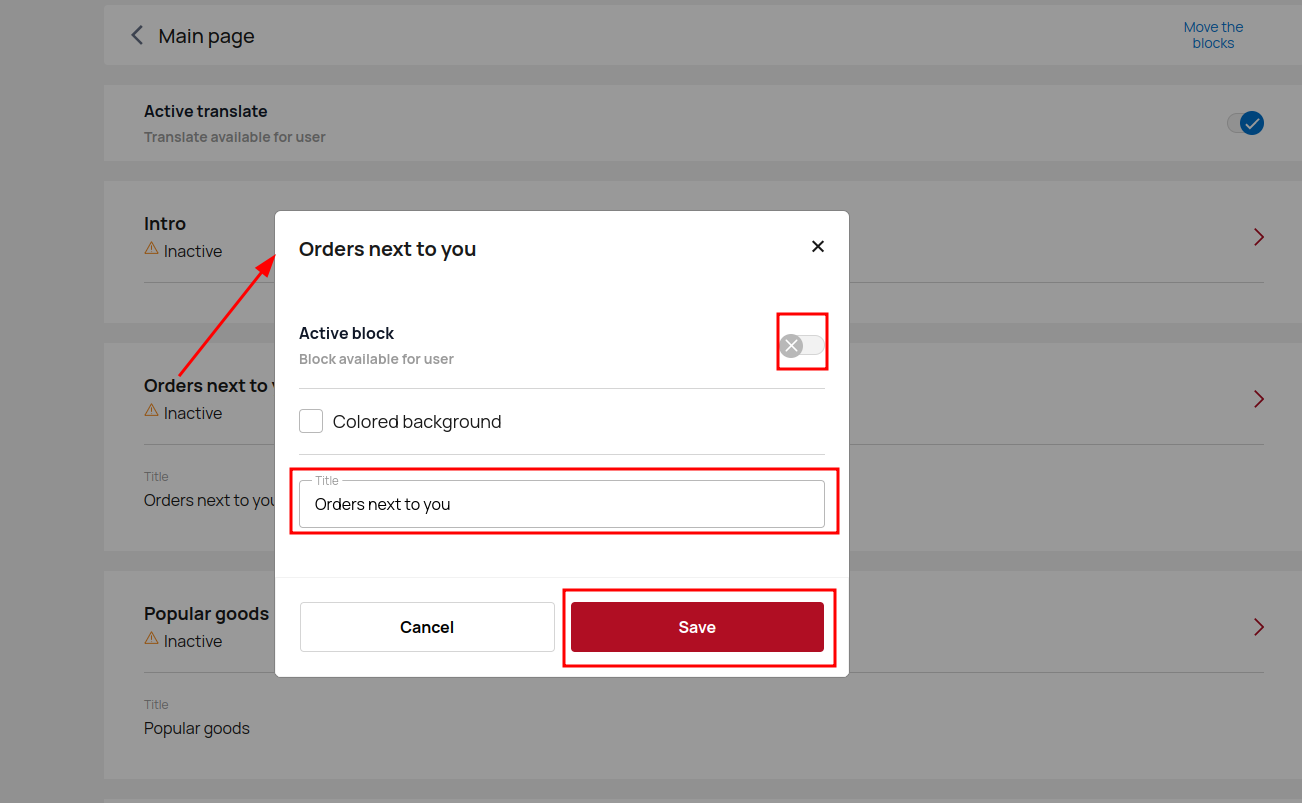
A block for displaying the latest products that have been calculated by site users. The list is created and configured in the Company goods settings or Last orders next to you in the general settings.
You can change the name of this block, add a colored background. Don't forget to activate this block and make it visible to users.
Popular goods
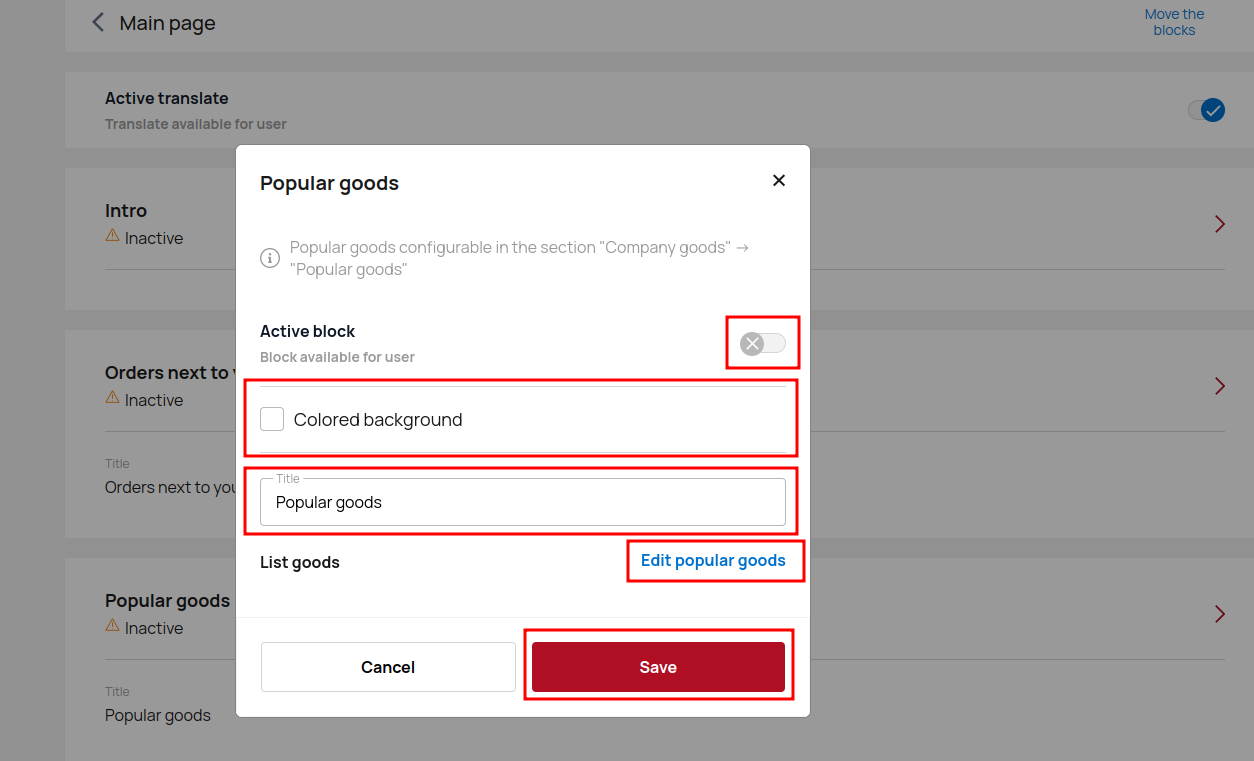
Popular goods block is for displaying your products on the page. You can display random items from each category in turn, or only items from a few priority categories. If necessary, you can add a title and a colored background, as well as edit the list of your products at any time. The products themselves are configured in the "Company Products" - "Popular Products" section.
Click Activate block to display it on the main page.
Catalogue of goods
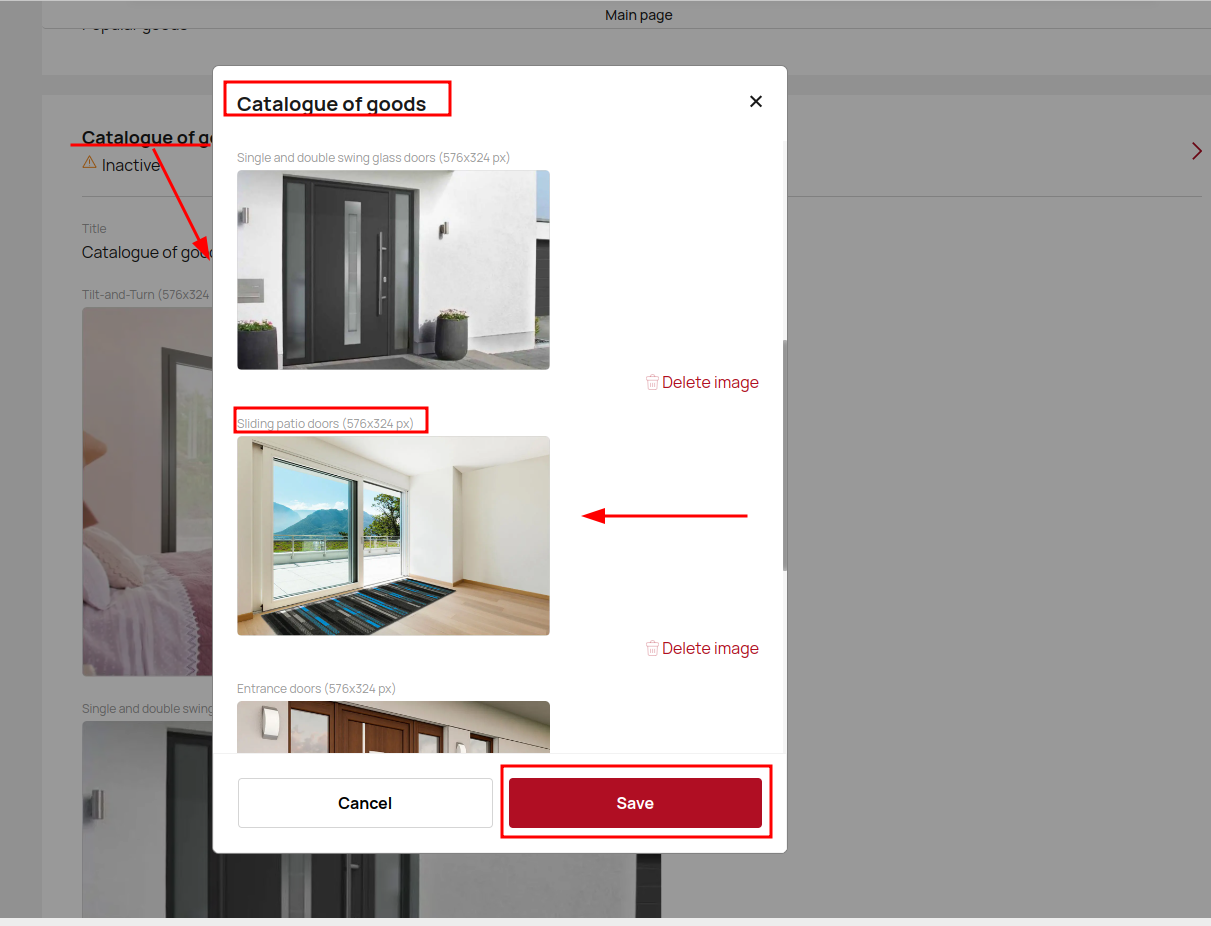
Thanks to this category, you can show the types of your goods and arouse interest in them. You can achieve this thanks to high-quality, easily recognizable photos and active links to them. In the block, you can place a photo (576x324 px) for the catalog accordng to an appropriate title. Set a background color for this block as needed.
When you activate this block, users will see your company goods types on your site.
When the user clicks See prices for a specific product type, the user will be redirected to the clients configurator. 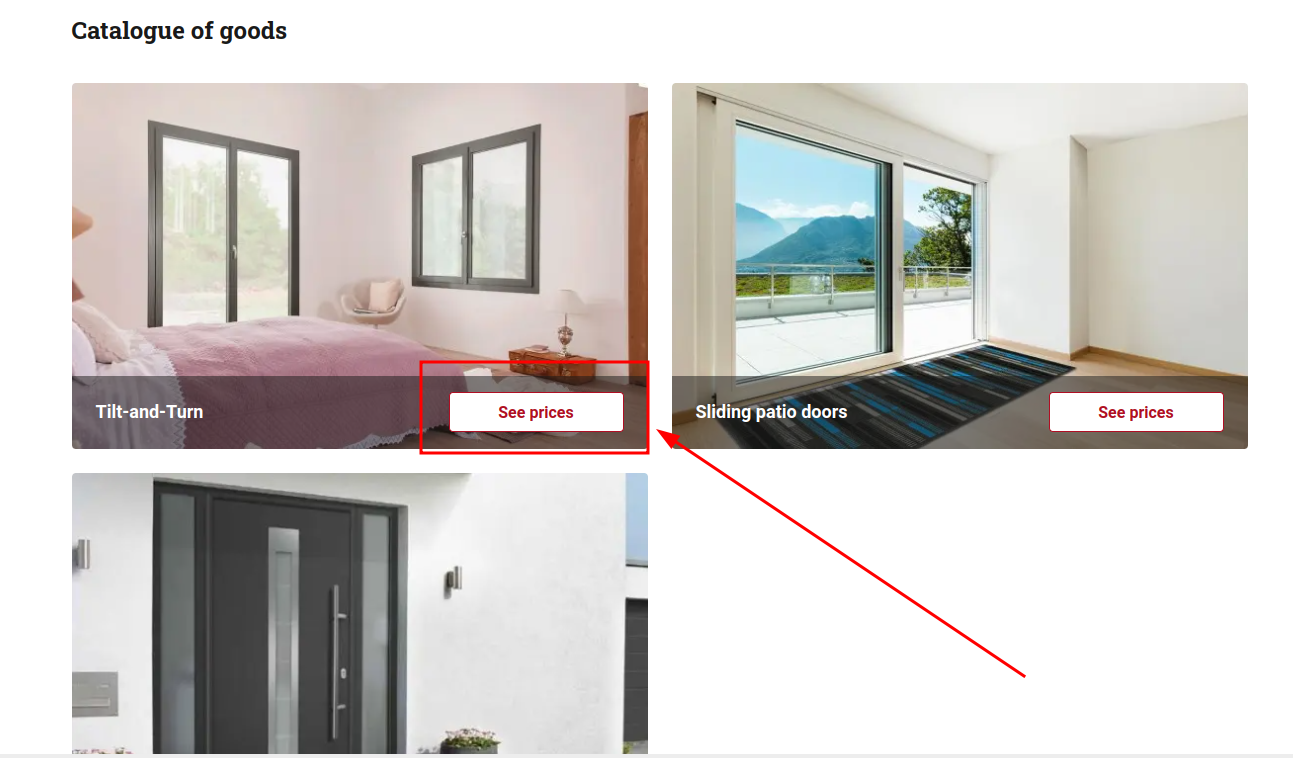
About Us
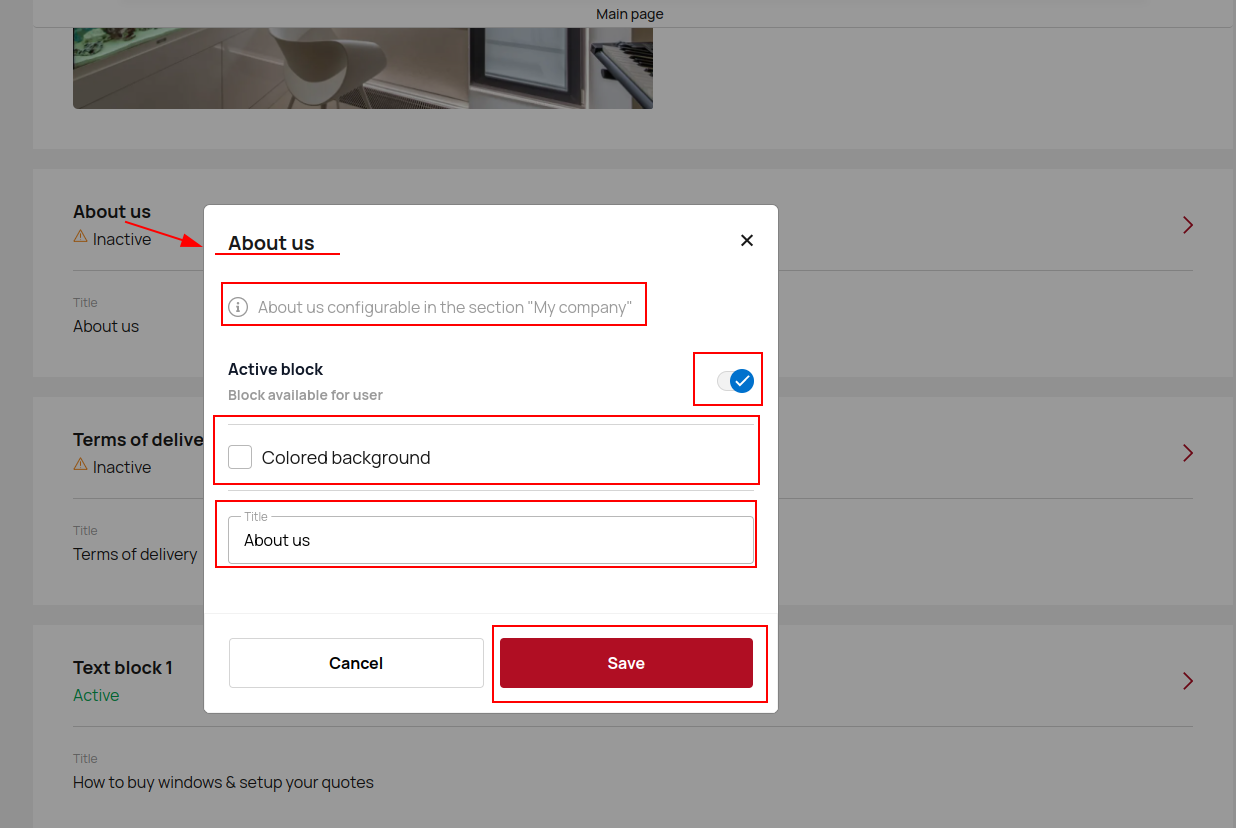
This is information about your company, field of work, goods and services. This block is configured in the My Company - Company descriprion section. Here you can write the appropriate title and make it active/inactive.
Terms of delivery
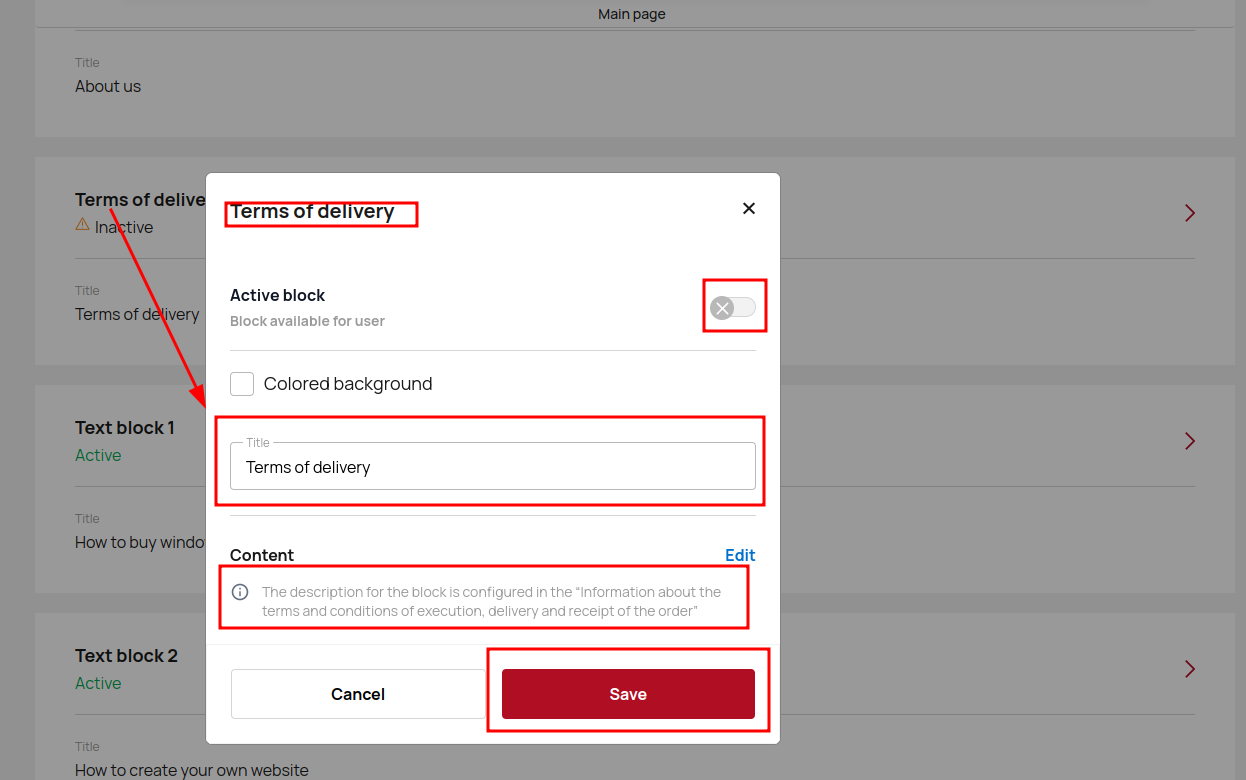
The delivery conditions block allows you to describe your company's delivery conditions. The description for the block is configured in the Information about the terms and conditions of execution, delivery and receipt of the order. That's why it's important to add as much translations as possible.
Text block
In this block you can place any necessary information. First of all, use a clear and precise title. In the Content field, there should be competent, structured, accessible and understandable text, which can be supplemented with visual elements, videos, links to third-party resources and tables.
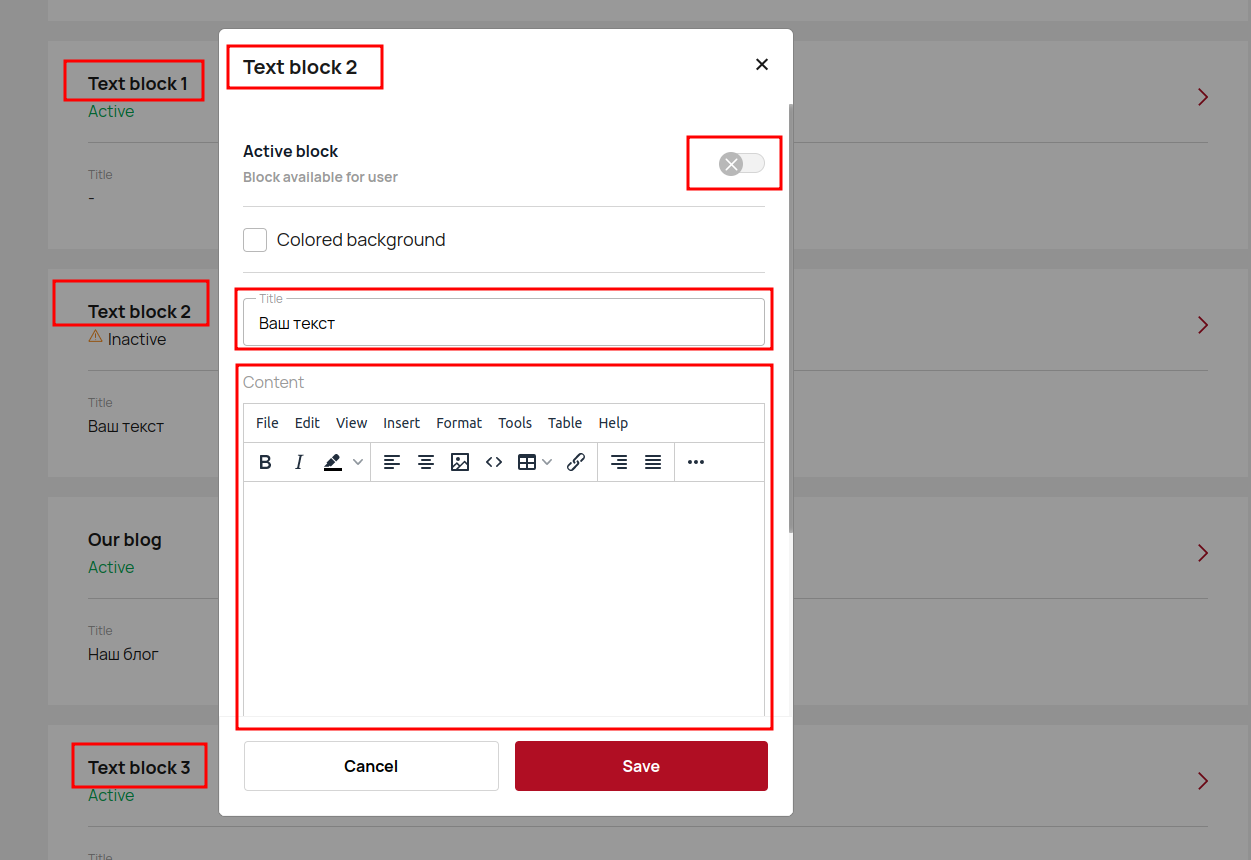
There are 3 text blocks available
Zone of service
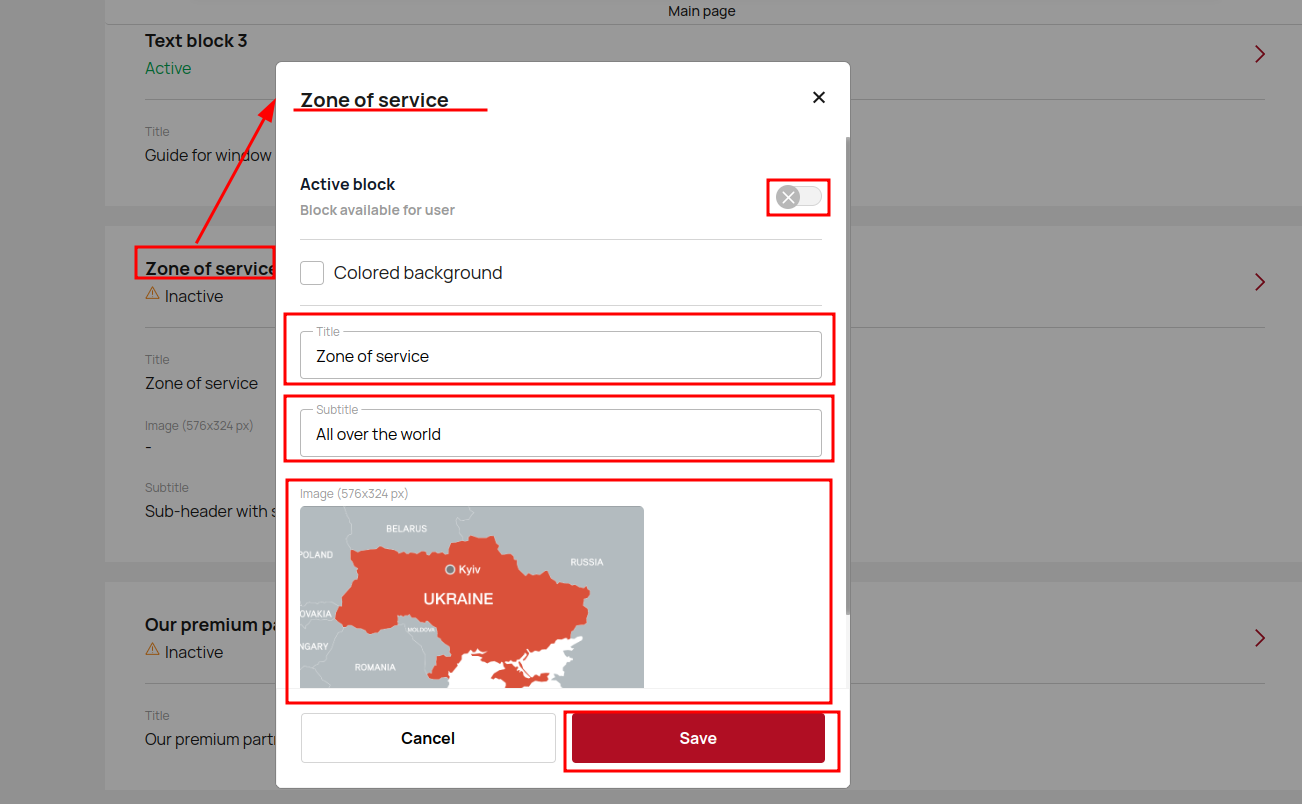
The Zone of service block allows you to place information about your outlets or service area on the main page. This block can be supplemented with a map whose image block is 576x324 px.
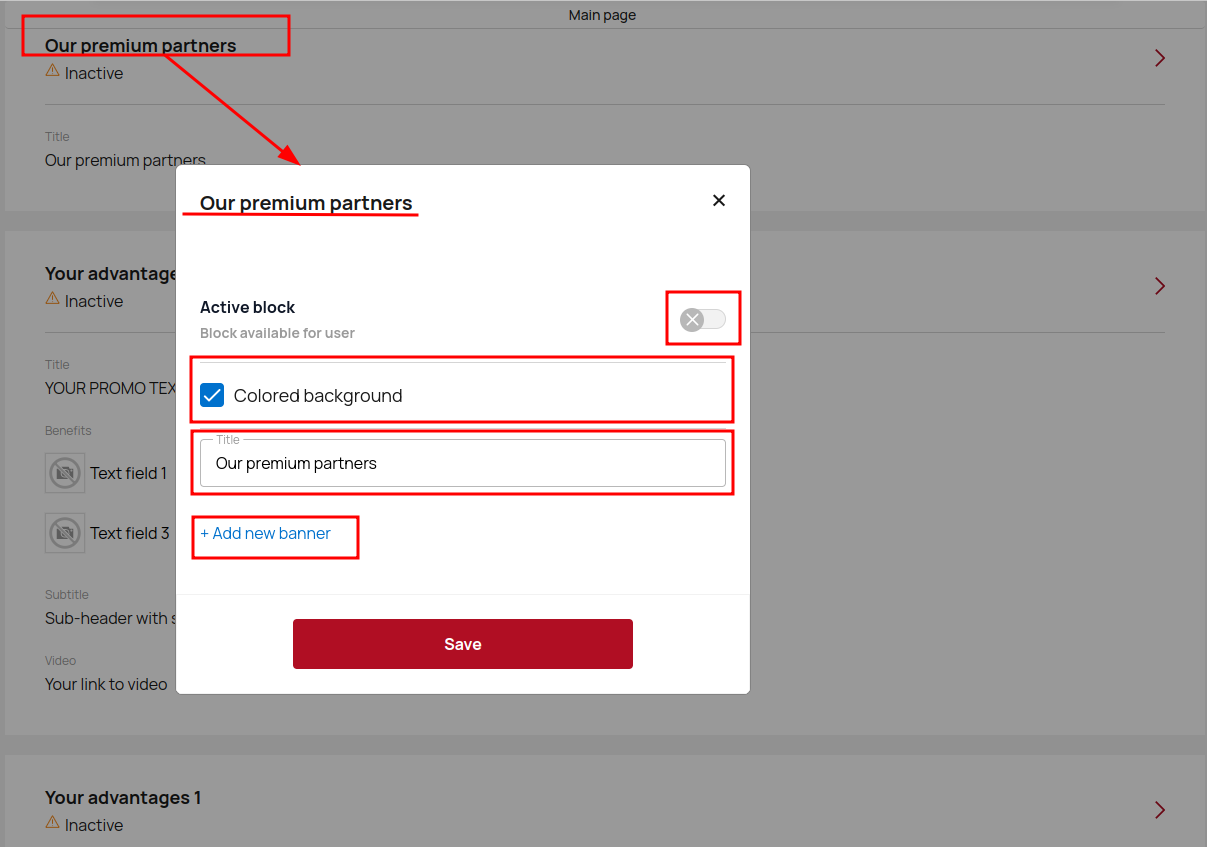
Our premium partners
Our premium partner block allows you to place the logos of your customers or partners. If your partners are well-known, it will be easier for you to keep the attention of visitors and, accordingly, convert them into customers. Click the Add New Banner button, and enter a title and select a background color.
Your Advantages
In the Our Advantages section of your web page, you can tell customers about the benefits of shopping on this site. Add a name and description of the Benefit, icons, caption and link to them. If you can talk about your company in video format - just insert the appropriate link in the video field.
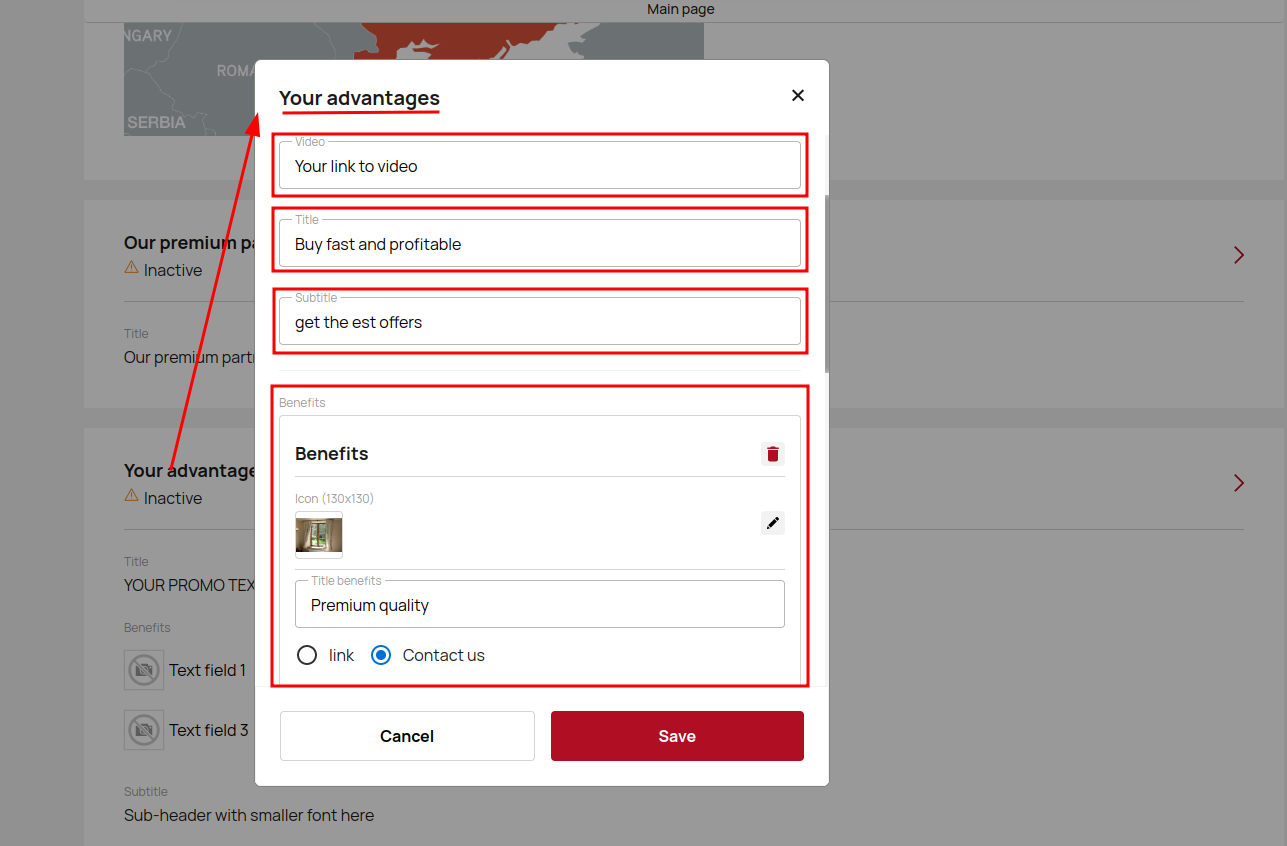
There are 3 available blocks Our advantages.
Promo block with banner
In the Promo block with banner you need to post announcements about current and future promotions, bonuses, and profitable offers. The block allows you to upload banner images to the site in desktop (1200x500 px) and mobile (375x430 px) versions. Also insert a link for your banner or choose Contact us.
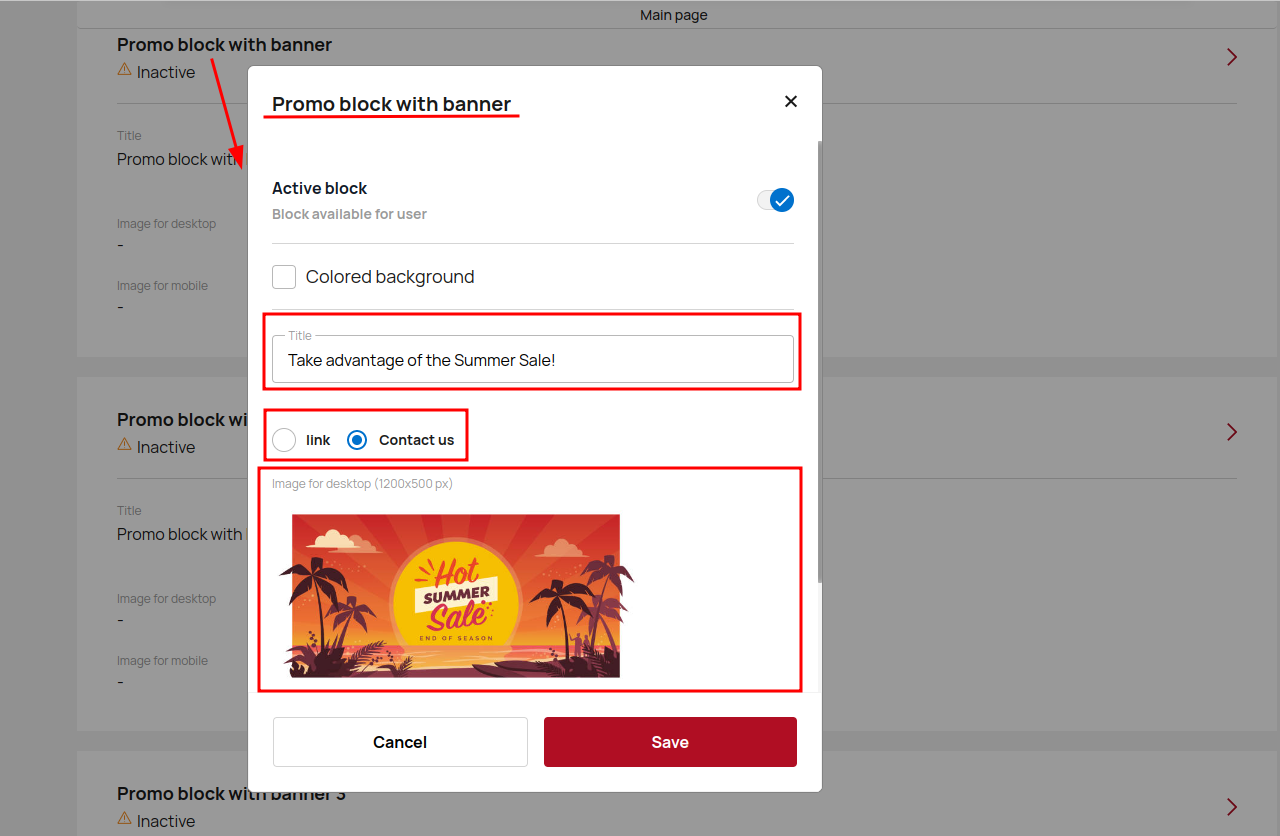
There are 3 Promo block with banner blocks available
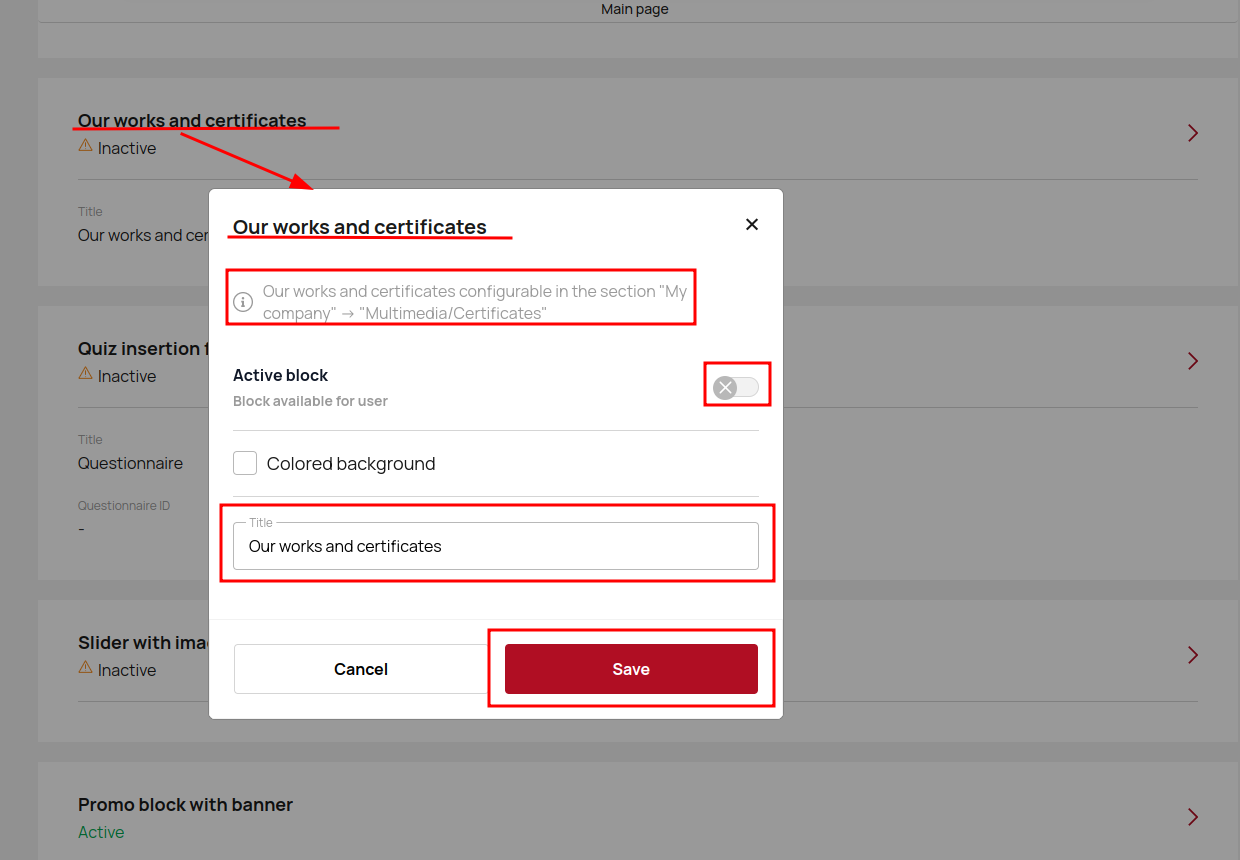
Our works and certificates
Our works and certificates block allows you to add a gallery to your site to create a portfolio, showcase the services your company provides, or share photos of recent events.
Works and certificates are downloaded in the section My companies - Multimedia. In the block, you can write a title and choose a color background.
Contact person
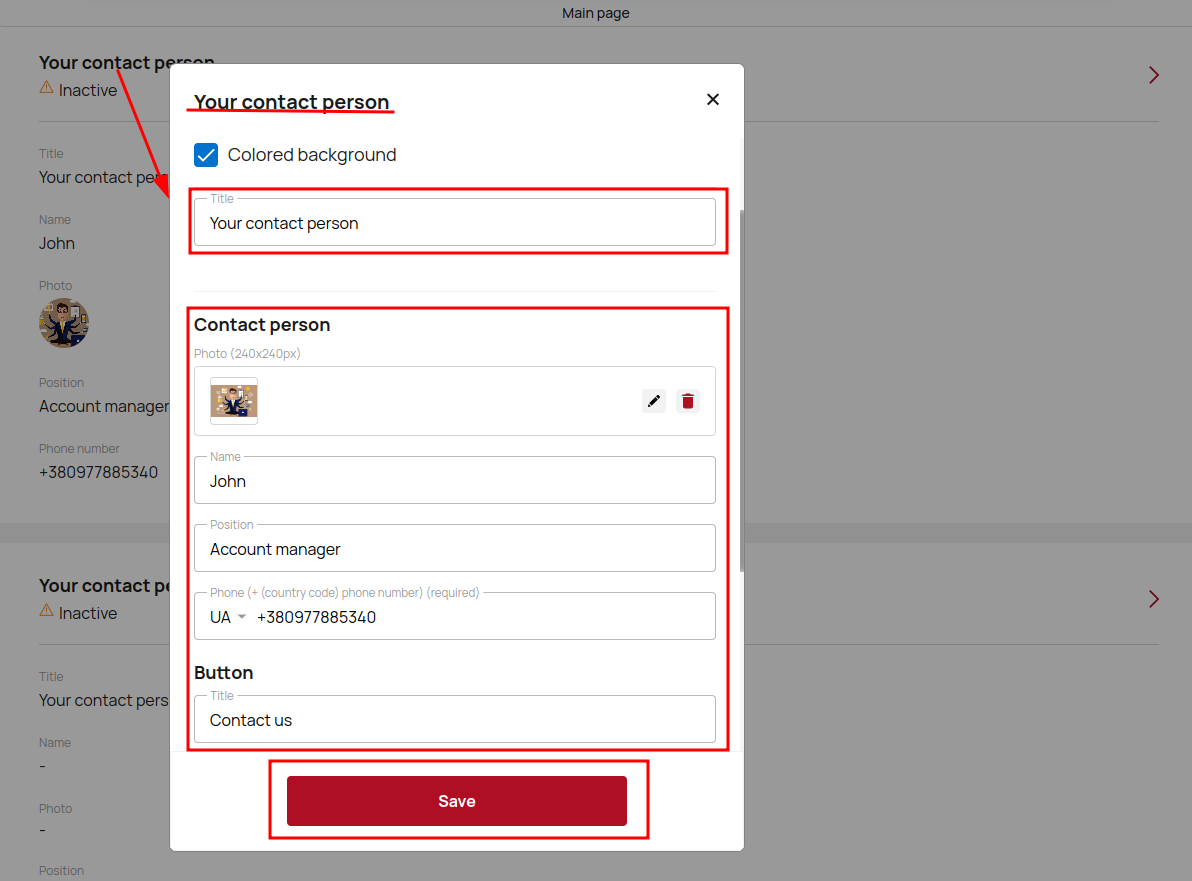
The Contact person block should contain contact data - phone numbers, messengers and e-mail for communication between clients and your managers. In this block, add information such as a photo (240x240 pixels), the person's name, title, and phone number.
Also customize the button name and link for further navigation.
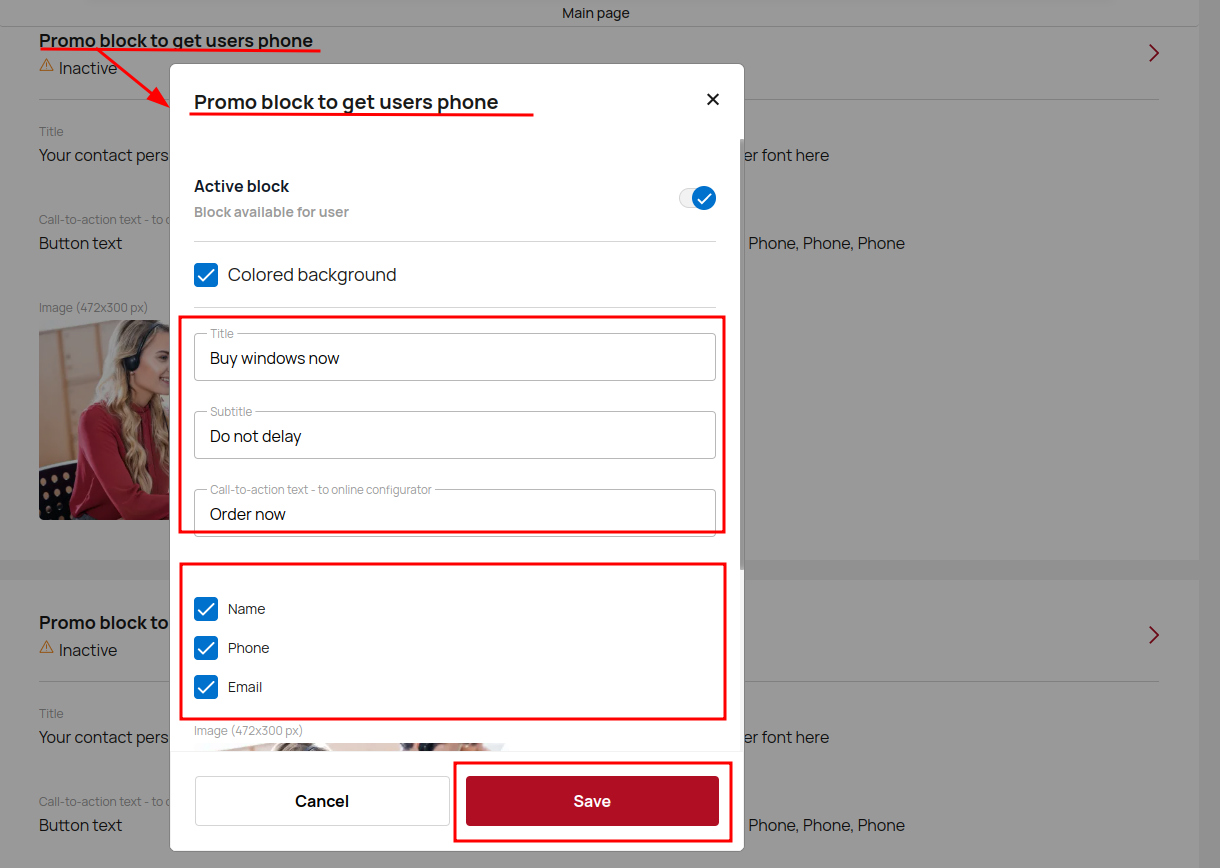
Promo block to ger users phone
Promoblock to get users phone is created for ordering a callback or consultation, subscription form, newsletter, etc. You can describe your offer, choose data to fill in, which will be in the form (name / phone / email) and upload a picture (472x300 px).
The feedback button
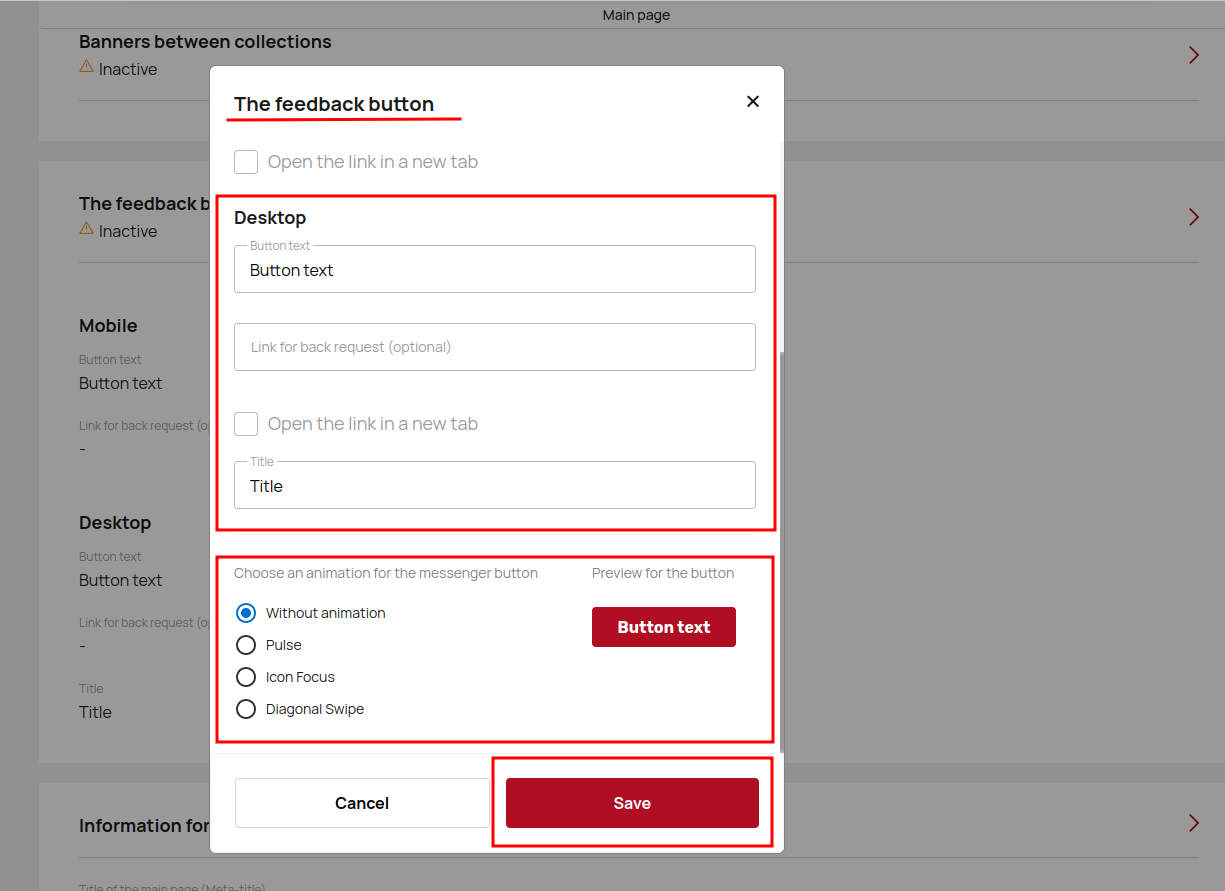
With the help of the feedback button, you get the opportunity to contact a potential client. At the same time, the visitor who left his contact details is waiting for a response to his request.
So, you have the option to activate such a button by creating a name for it, adding the necessary link and animation.